
TONALITE Manual
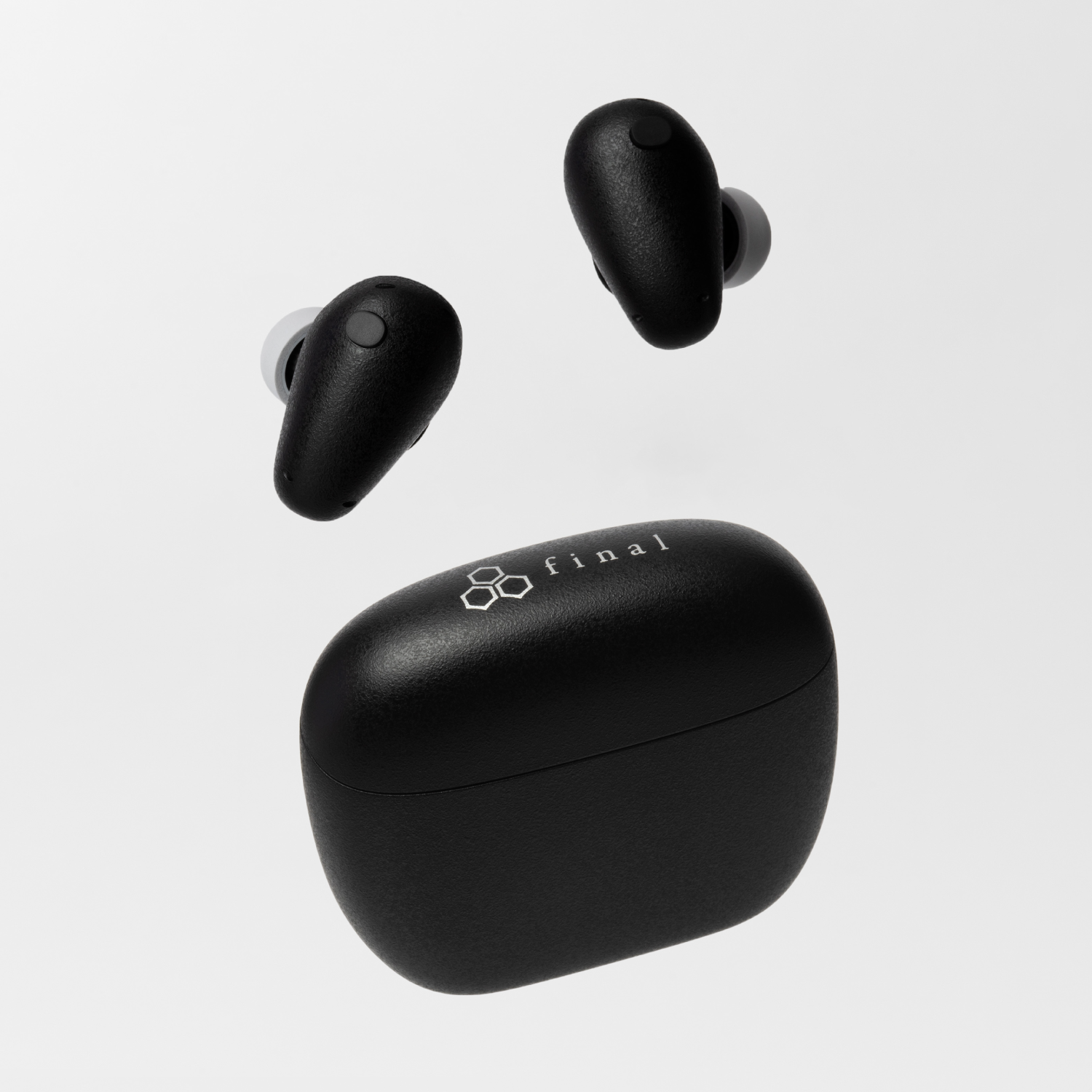
A: Earbuds (main units)
B: Charging case
C: Eartips
D: Adjusting rings (S/M)
E: Dust filters
F: DTAS Kit (G: AR marker stickers / H: hairband)
I: Quick manual
J: Safety Instructions / Warranty Terms

【case】
A: Pairing button
B: LED indicator
C: Battery indicator
D: USB port
【earbuds】
E: Touch sensor
F: Wear detection sensor

How to use
Charging the charging case:
Please charge the charging case according to the recommended USB charging environment below.
While charging, the battery indicator on the charging case will light up or flash depending on the case’s remaining battery level, as shown in the table below.
Note: A charging cable is not included. Please use a commercially available USB cable.
Recommended USB charging environment
USB charger: A commercially
available USB charger capable of supplying an output current of 1A (1000mA) or higher
USB cable: USB Type-C cable (compliant with USB standards)
About wireless charging
This product supports wireless charging.Use a wireless charger compliant with the Qi standard.
Place the charging case in the center of the wireless charger to start charging.
While charging, the battery indicator will light up to show the charging status.
Note:
* Place the charging case with its bottom facing down.
* A wireless charger is not included. Use a commercially available Qi-compatible charger.
* When using wireless charging, also refer to the wireless charger’s instruction manual.
| Battery Level | LED Indicator |
| 0%〜25% | First light flashing |
| 26%〜50% | First light on, second light flashing |
| 51%〜75% | First two lights on, third light flashing |
| 76%〜99% | First three lights on, fourth light flashing |
| 100% | All four lights on |
Charging the earbuds:
When you place the earbuds into the charging case and close the lid, the earbuds will power off and charging will begin. For approximately 2 seconds immediately after closing the lid, the battery indicator on the charging case will light or flash according to the battery level of the charging case, as shown in the table above.

After charging, when you open the lid of the charging case, the LED indicator on the charging case will light for about 2 seconds, and the earbuds will turn ON.
Note: If both the battery indicator and LED indicator on the charging case do not light when the lid is opened, the battery level of the charging case is 0%, and therefore the earbuds will not turn ON automatically. Please charge the charging case immediately. In this condition, the earbuds cannot be powered ON even if you open the lid. Insert a charging cable into the charging case or place it on a wireless charger, and then remove the earbuds from the case while the charging case is being charged.
| Battery Level | LED Indicator |
| 0%〜3% | Off |
| 4%〜25% | 1 light on |
| 26%〜50% | 2 lights on |
| 51%〜75% | 3 lights on |
| 76%〜100% | All 4 lights on |
Note: You can check the battery levels of the earbuds and the charging case using the dedicated app “final TONALITE” when they are paired with your smartphone or other device. For more details, please refer to “About the dedicated app ‘final TONALITE’.”
When the charging case has sufficient battery, placing the earbuds into the case and closing the lid will turn the earbuds off and begin charging. For about 2 seconds immediately after closing the lid, the charging case’s LED indicator will light according to the battery level as shown in the table above.
Note: If the LED indicator on the charging case does not light even after placing the earbuds inside, the battery level of the charging case is 0%. Please charge the charging case promptly. In this condition, the earbuds will not turn off automatically when inserted into the charging case.
When connecting to your smartphone or other device for the first time, pairing is required. The next time you remove the earbuds from the charging case, they will automatically connect to the device that was last used.
When using this product for the first time:
1. When you open the lid of the charging case, the earbuds will power on automatically and enter pairing mode. At this time, the LED indicator on the charging case will flash.
2. Turn on the Bluetooth function of your smartphone or device. When “final_TONALITE” appears on the screen, select it. When “final_TONALITE Connected”*¹ appears, pairing is complete.
To re-pair or pair with a second (or additional) device:
1. Open the lid of the charging case and keep the earbuds stored inside. Press and hold the pairing button on the charging case for 3 seconds to enter pairing mode. The LED indicator on the case will flash.
2. Turn on the Bluetooth function of the device you want to connect and perform pairing.
*1: Display may vary depending on the device.
* This product supports Google Fast Pair. For more information, please refer to Google’s support documentation.
* This product supports Microsoft Swift Pair. For more information, please refer to Windows’s support documentation.
* This product supports multi-pairing and can store pairing information for up to 10 devices. You can easily switch between previously paired devices.
* This product supports multi-point connection. By enabling Multi-Point in the dedicated “final TONALITE” app, two paired devices can be connected simultaneously. Multi-Point is OFF in the factory default settings.
Note: For detailed pairing
instructions, please refer to the guide video “How to Pair” at the TONALITE support page.

| Music | Play / Pause | Tap the left/right side once |
| Volume Up | Tap the right side once, then press and hold | |
| Volume Down | Tap the left side once, then press and hold | |
| Next Track | Tap the left/right side twice | |
| Return to Start / Previous Track ※1 | Tap the left/right side three times | |
| Calls | Answer Call | When receiving a call, tap the left/right side once |
| End Call | During a call, press and hold the left/right side | |
| Reject Call | When receiving a call, press and hold the left/right side | |
| Siri / Google Assistant | Activate ※2 | Tap the left/right side four times |
| Noise Cancelling / Ambient Sound Switching | Press and hold the left/right side |
*1: If operated immediately after a track starts, it will skip to the previous track. If operated during the middle of a track, it will return to the beginning of the current track. To go back to the previous track from the middle of a track, operate twice in succession.
*2: Some functions may not work depending on the connected device.
You can select the following two modes as noise control functions.
“Noise Cancelling” – Reduces surrounding noise to make playback sound easier to hear.
“Ambient Sound” – Keeps the music volume as is while allowing surrounding sounds to be heard.
Note:
* When using DTAS: General, you can select between “Sound Quality” mode and “Noise Reduction” mode for ANC priority in the “final TONALITE” app.
* The factory default setting is Ambient Sound mode.
In the dedicated app “final TONALITE,” you can customize the touch controls of this product. In the “Touch Control” settings, you can choose from three touch-operation patterns or turn the touch controls OFF.
Note: The Touch Control layout shown above is one of the three patterns. It is the default pattern, TYPE A.
This product is equipped with a wear detection sensor that automatically switches the touch sensor functions and noise control modes depending on whether the earbuds are being worn. When the earbuds are worn in the ear, touch sensor operations are enabled; when removed, they are disabled. Additionally, if only one earbud is worn, the noise control mode automatically switches to Ambient mode, and when both earbuds are worn, it returns to the previously selected noise control mode.
This product supports single-ear use. After pairing the earbuds once with your smartphone or other device, you can activate single-ear mode simply by placing either earbud in the charging case and taking out the other earbud. The connection will automatically switch to single-ear mode. In single-ear mode, the left and right stereo channels are mixed so that audio can be heard comfortably from one ear without feeling unbalanced.
Please note that touch sensor operations differ from normal operation when using single-ear mode, as shown in the table below.
| Music | Play / Pause | Tap once |
| Next Track | Tap twice | |
| Return to Start / Previous Track | Tap three times | |
| Calls | Answer Call | Tap once during an incoming call |
| End Call | Press and hold during a call | |
| Reject Call | Press and hold during an incoming call | |
| Siri / Google Assistant | Activate | Tap four times |
Note: In single-ear mode, the Ambient mode is fixed and noise control cannot be changed.
If pairing does not work properly or an unexpected error occurs and the earbuds do not function correctly, please reset the earbuds using the steps below. After the reset is complete, try pairing again.
1. Place both earbuds into the charging case with sufficient battery remaining, keep the lid open, and press the pairing button on the charging case for about 10 seconds.
2. After a short while, the earbuds will automatically enter pairing mode with your smartphone or other device, and the LED indicator on the charging case will start blinking. This indicates that the reset is complete.
3. When the reset is complete, the earbuds return to factory settings, and all pairing information stored on the earbuds will be deleted. Therefore, please delete this product’s pairing information from your device as well, and then perform pairing again.
Note: After resetting, the volume returns to the factory default level, and the earbuds return to Ambient mode.

The triple-hybrid structure combining three materials—ultra-dense foam, soft silicone, and high-elasticity silicone—provides both excellent sound isolation and a comfortable fit without pressure.
If you feel a lack of bass or find high frequencies harsh, the eartips may not be fitted correctly. To enjoy the earphones with the intended sound quality, it is important to wear the eartips properly so that your ear canals are well sealed. Please try the following methods to ensure correct fitting:
・If you feel discomfort when wearing them, try other sizes such as S, M, or LL.
・Since ear canal size can differ between left and right even within the same person, try different sizes for each ear.
Because these eartips use foam material, please follow the precautions below:
・Do not compress them with your fingers; insert them into your ears in their natural shape.
・Avoid contact with alcohol or other liquids, as this may cause premature deterioration.
・If they become wet, remove moisture and make sure they are completely dry before using or storing them.
・If they become dirty, avoid washing with water or using wet wipes. Instead, gently wipe with a clean, dry cloth.
・Handle them carefully. Do not pull or squeeze them strongly, as this may cause damage. Avoid rubbing them or exposing them to sharp objects or adhesive tape. Also, do not leave them under pressure for long periods, as they may deform and not return to their original shape.
・Regardless of use or storage conditions, the foam naturally deteriorates over time. When deterioration occurs, performance declines. Replace with new eartips as early as possible. The replacement guideline is every 3 months.
Note: For instructions on how to attach and remove the Adjust Ring, please refer to the guide video “How to change the Eartips and Adjusting Rings" at the TONALITE support page.
The Adjusting Ring is a component designed to improve the fit in the ear and stabilize the earbuds when worn.It helps prevent the earbuds from falling out even during long periods of use, ensuring a comfortable experience.
If you feel any discomfort when wearing them, please try the S size.
Note: For instructions on how to attach and remove the Adjust Ring, please refer to the guide video “How to change the Eartips and Adjusting Rings"" at the TONALITE support page.
By downloading the app onto the device paired with this product, you can access a wide range of features. Please download the app and make full use of it together with this product.
・DTAS: Create Personalized Timbre based on your body shape
・Noise Control: Switch between Noise Cancelling and Ambient Sound.
・Volume Step Optimization: Fine-tune volume in precise increments
・Multipoint: Simultaneous connection with two devices
・10-Band EQ: Adjust sound quality by modifying the level of each frequency band
・Touch Control: Assign tap operations or disable them
・Firmware updates
・Various Settings: Gain settings and low-latency mode switching
・News updates and battery level check
Note:
* This app supports Android™ 14 or later / iOS 17 or later.
* You can install the dedicated “final TONALITE” app from here.
Troubleshooting: When You Think, “Is It Broken?”
・Cause 1:(Immediately after purchasing) Battery level is low
For safety of transportation from overseas, laws and regulations do not allow the internal battery to be fully charged at the time of shipping. For that reason, voltage may fall below the level required for operation at the time the customer opens the package. Please refer to “Charging” above.
・Cause 2:Earbud’ s battery is depleted
Please return the earbuds into the charging case and close the case to charge them. (In case the charging case power has run out, please charge the charging case first.) Please refer to “Charging” above regarding the method for charging.
・Cause 3:An error has occurred due to improper operation
In some cases, performing a reset operation may fix the problem. Please refer to “Performing Factory Reset” above.
・Cause 4:Charging case battery is depleted
If opening and closing the lid of the charging case does not activate the LED indicator, it means that the charging case’s battery is completely depleted. In this condition, even if you take the earbuds out of the case, they will not turn on automatically, and their battery may also be low. Please place the earbuds in the charging case and charge the case. For details on how to charge, refer to the “Charging” section above.
・Cause 1:An error has occurred due to improper operation
In some cases, performing a reset operation may fix the problem. Please refer to “Performing Factory Reset” above.
・Cause 2:Charging case battery is depleted
If the LED indicator on the charging case does not respond when you open or close the lid, it means that the battery of the charging case is completely depleted. In this condition, even if you place the earbuds in the charging case and close the lid, the earbuds will not turn off automatically. Please charge the earbuds. For details on how to charge them, refer to the “Charging” section above.
・Cause 3:(When the earbuds do not turn off even when placed in the charging case) You are using eartips other than the supplied ones.
Normally, when the earbuds are placed in the charging case with sufficient battery and the lid is closed, the earbuds automatically turn OFF and begin charging. However, if you are using eartips other than the included ones, they may interfere with the charging case, preventing proper charging and causing the earbuds not to turn OFF. Please check whether the earbuds operate normally with the supplied eartips.
・Cause 1:Charging case battery is depleted
Normally, when the earbuds are placed in the charging case with sufficient battery and the lid is closed, the earbuds automatically turn OFF and begin charging. If charging does not start, the charging case itself may not have enough remaining battery. Please charge the charging case and try again. For details on how to charge, refer to the “Charging” section above.
・Cause 2:The lid of the charging case is not closed
If the lid of the charging case is not fully closed while the earphones are stored inside, charging will not start. Please ensure that the lid of the charging case is properly closed.
・Cause 3:Using eartips other than the supplied ones.
Normally, when the earbuds are placed in the charging case with sufficient battery and the lid is closed, the earbuds automatically turn OFF and begin charging. However, if you are using eartips other than the included ones, they may interfere with the charging case, preventing proper charging and causing the earbuds not to turn OFF. Please check whether the earbuds operate normally with the supplied eartips.
・Cause 1:Earbuds are not in the pairing mode
In some cases, performing a reset operation may fix the problem. Please refer to “Performing Factory Reset” above.
・Cause 2:( If pairing has been performed once ) Connected to a previously connected device
Please try performing the pairing operation again after having deleted the pairing information from the previously paired device.
・Cause 1:The output of the USB adapter being used for charging is low
When using a USB port on a PC or similar device, the output may be low, resulting in longer charging times than the rated value. Therefore, when charging this product, please use a USB adopter capable of supplying 5V/1A or more.
・Cause 2:The distance between the wireless charger and the earbud charging case is too big.
When using wireless charging, charging time may increase depending on the charger’s output or misalignment. Please use a Qi-compatible wireless charger, close the lid of the charging case, and place the case with the final logo facing upward, aligning the center of the case with the center (or Qi logo) of the wireless charging pad. If there is a gap between the pad and the case or if they are not properly aligned, it may cause heat generation, reduced charging efficiency, or longer charging times. If the shape of the charging pad creates a gap, please use one that allows the case to sit as closely as possible. Charging efficiency may also decrease if you place the case on top of a thick cover or sheet.
Cause:Unstable connection caused by interference from external factor
Bluetooth communicates using the 2.4GHz band. This band is used by other wireless standards such as Wi-Fi, etc., and so there is a possibility of receiving interference. Moreover, this 2.4GHz band does not penetrate liquids. There is impact from humidity and rain, and the human body also contains liquid, so there are individual differences in connectivity. Furthermore,it depends on the specifications of smartphones and other devices. For that reason, switching OFF unused Wi-Fi / Bluetooth settings on surrounding devices, etc. is a countermeasure. While outside, there is a possibility that moving a smartphone from inside a bag to a breast pocket, etc. or otherwise reducing the distance between devices may improve the connection status.
・Cause 1:The left/right earbud pairing has been released
In some cases, performing a reset operation may fix the problem. Please refer to “Performing Factory Reset” above.
・Cause2:The battery of one side of the earbuds has depleted
Please return the earbuds into the adequately charged charging case and close the case to charge it. Please refer to “Charging” above regarding the method for charging.
Based on the design specification, one side is the parent and the other side is the child, so the burden between left and right is different
Under the specification for Bluetooth earphones, communication generally takes place with one side as the parent and the other as the child. As such, the child only communicates with the parent, but the parent communicates with the smartphone or other devices and communicates with the child as well, and so there is a difference in the level of burden borne by the left and right earphone. As a result, a difference in the battery consumption between the left and right may occur.
・Cause 1:The touch control panel has become soiled or wet
In case the touch control panel has become soiled or wet, the touch control panel may not function properly, and it may not be possible to operate the earbuds. Please wipe the touch control panel section with a soft, dry cloth to remove stains or moisture.
・Cause 2:Touch control is turned OFF
When touch control is turned OFF, tap operations are disabled. To enable touch operations, please open the “Touch Control” settings in the “final TONALITE” app and set touch control to any option other than OFF.
Cause:Ear tips do not fit properly
If the ear tip size does not fit your ears, noise cancelling will not function effectively. Please try different sizes in addition to the pre-installed L size and use the size that best fits you. For more information on ear tips, please refer to the “About the Ear Tips” section above.
Cause:Dust filter at the nozzle opening is clogged with build-up
If the filters become dirty, it may cause a decrease in sound pressure. Please clean your ears before wearing the earphones to prevent the filters from getting dirty. If dirt adheres to the filters, gently remove it using a small brush or a toothpick by lifting the debris off the surface. If the dirt cannot be removed, replace the filters with new ones (be sure to replace the filters on both the left and right sides).
※For detailed instructions on filter maintenance, please refer to the guide video “Maintenance Method” below.
・Cause 1:Dirt or moisture on the wear-detection sensor
If dirt or moisture is present on the wear-detection sensor area, the earbuds may not correctly detect the wearing state, which can cause them to malfunction. Wipe off any dirt or moisture with a soft, dry cloth and use the earbuds in a clean condition.
・Cause 2:Earbuds not inserted deeply enough or positioned incorrectly
If the earbuds are not positioned correctly in your ears, the sensor may not respond. Make sure the earbuds are securely and properly fitted in your ears to maintain a stable wearing state.
In addition to adjusting the position, changing the eartips or adjust rings may help achieve a proper fit. For details on eartips, please refer to “About the Ear Tips”
Others
Dirt adhering to the dust filter should be removed gently while taking sufficient care for safety, for example by lifting it with the tip of a cotton swab. Be careful not to let dirt fall inside the unit during cleaning.
If the dust filter becomes noticeably dirty, if the sound becomes quieter, or if you feel an imbalance in volume between the left and right sides, please try replacing it with the new dust filters included in the package.
1. Use tweezers or similar tools to remove the old dust filter.
2. Peel a new dust filter from the sheet.
3. Place the dust filter concentrically on the housing.
4. Press down on the adhesive part with a cotton bud to secure it.
Note:
* To maintain consistent quality between left and right sides, please replace both filters at the same time.
* For detailed instructions on maintenance and dust filter replacement, please refer to the guide video “Maintenance” at the TONALITE Support page.

The rechargeable batteries built into the equipment are recyclable. During disposal, please follow the instructions from your local municipal government and do not attempt to disassemble the product.
The warranty for this product is valid for 1 year from the date of purchase. During the warranty period, we will repair the product based on the provisions below. The warranty is only valid in the country in which the product was purchased. Regarding questions pertaining to repairs, please contact the store you purchased the product from or contact us by visiting our TONALITE Support
1. If the product malfunctions within the warranty period under the usage conditions specified in the warnings and cautions of this manual, we will repair it free of charge.
2. In the following cases, repairs to the product will be subject to a fee even during the warranty period:
(1) Original purchase receipt or other documentation showing the date of purchase are failed to be presented.
(2) The product is identified to be modified, disassembled, or repaired by a third party or customer other than our company or our authorized organizations.
(3) The earphones were subjected to a strong impact or were allowed to get wet. Product failure resulting from an excessive use of force on the product.
(4) Failure due to fire, earthquake, wind, flood, lightning, or other acts of God, human error, theft, or virus and malware infection.
(5) Repair of scratches on the surface of the housing or repair of the housing itself
3. We shall not be liable for any incidental or consequential damages for breach of any express or implied warranty or condition on this product. Nor shall recovery of any kind against us be greater than the original purchase price of the product from us or an our authorized dealer
Please contact us by visiting our TONALITE Support page.